

Many people have heard of VPNs, but relatively few cared about them—until ChatGPT came along.
Or perhaps it would be more accurate to say: until the internet started moving backwards.
The web was once imagined as a borderless network where services were available to everyone, everywhere. Increasingly, that is no longer the case. More and more services are being restricted by country, with access determined by where your IP address says you are.
That is where VPNs come in.
What a VPN Actually Does
Without getting bogged down in the technical details, a VPN (Virtual Private Network) essentially does two things:
- Encrypts your internet traffic.
- Changes your IP address.
Trying to convince someone to pay for a VPN because it will “improve your privacy” is a tough sell. But tell them that a VPN can make you appear to be in another country—so you can use AI services or watch movies that are only available on Netflix in that market—and suddenly the appeal is obvious.
There is, however, a catch.
The Price of Using a VPN
VPNs come with a few trade-offs.
1. Lower bandwidth, higher latency
With today’s internet speeds, most people will barely notice the difference in everyday use. But gamers and anyone who cares about squeezing every last bit of performance out of their connection will not be thrilled about adding another layer of routing, encryption and decryption to the journey.
2. Your IP address starts teleporting around the world
Turn a VPN on and off—or switch between servers—and your apparent location can change dramatically.
One second you’re in the US. The next, you’re suddenly in Hong Kong. A moment later you’re back in the US, but apparently in another state.
From a service provider’s perspective, that looks suspiciously like an account being hijacked by someone who can teleport.
The result? CAPTCHAs. Identity checks. Security alerts. More CAPTCHAs.
It gets old very quickly.
3. Local services may stop working
This is particularly annoying in Hong Kong.
Services such as ChatGPT and Claude restrict access from Hong Kong, so you need an overseas IP address to use them. But the moment you appear to be overseas, local services—including cryptocurrency exchanges—may decide that you’re somewhere you shouldn’t be.
You end up constantly switching your VPN on and off, or hopping between VPN servers.
And the more often your IP address changes, the more problems you create for yourself.
There is, fortunately, a better way.
Instead of forcing every device and every application through the same VPN, you can tell your network exactly which traffic should go where.
It is called Policy-based Routing, or PBR.
Policy-based Routing: Let the Router Make the Decisions
Policy-based Routing is pretty much what it sounds like: you define the policies, and the router decides how to route traffic accordingly.
The rules can be based on things such as the device, domain name, IP address, geographic location, or even the protocol being used.
For example:
- Traffic to claude.ai goes through a US VPN, giving you access to newer models and services.
- Your PlayStation 5 bypasses the VPN entirely and connects directly through your local ISP, keeping latency as low as possible.
- Everything else goes through a local VPN, improving privacy without making you appear to be somewhere else.
Once the rules are in place, the router handles everything automatically.
You don’t need to open an app, change a server, or remember which VPN you need for which service. The right traffic simply takes the right route.
And that is where things get interesting.
My Dream Router: UDR7
PBR is not exactly a feature you’ll find on every home router.
There are roughly three ways of approaching it.
1. Basic consumer routers
Most entry-level routers don’t offer much in the way of VPN configuration.
If you want a VPN, you generally have to configure it on each individual device—usually by installing an app, choosing a country and picking a server.
Simple, but tedious.
2. Mid-range routers
Some routers let you configure a VPN at the router level, meaning every device connected to the router can use it.
Much more convenient—but only if everything needs the same VPN.
The moment your Mac needs a US IP, your projector needs a Hong Kong IP, and your game console needs to bypass the VPN altogether, things start getting messy.
3. High-end routers and DIY setups
For proper PBR, you generally need more capable hardware—or a router running third-party open-source firmware such as OpenWrt.
And if you’re feeling particularly ambitious, you can even turn a Linux machine into your router.
These solutions are powerful, but they are also considerably more complicated. If you already know how to build one, you probably don’t need an introductory guide like this.
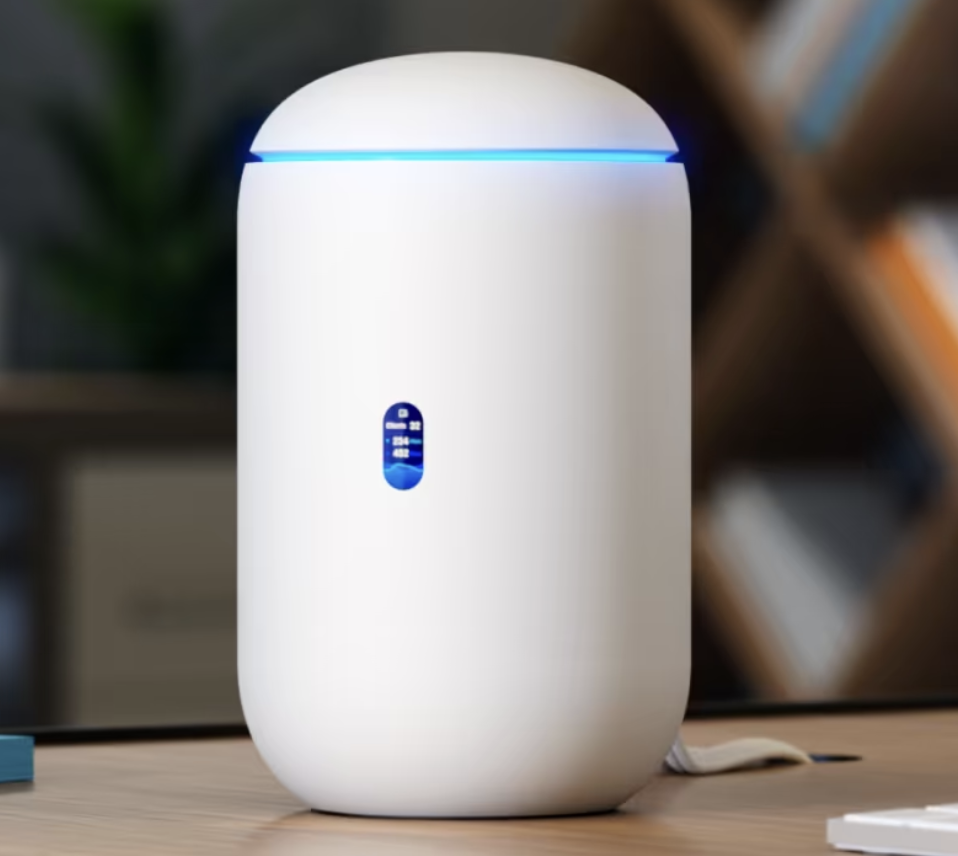
My recommendation sits somewhere in between: UniFi Dream Router 7, or UDR7.
It is slightly more expensive than a typical home router, but still accessible to ordinary consumers. It supports Wi-Fi 7, has a surprisingly attractive design, and—most importantly—has an excellent user interface.
In Hong Kong, it sells for HKD 2,998; in Taiwan, NTD 10,799.
I’ve been using the UDR7 since shortly after it launched, and have now had it for more than a year.
I can say, without much hesitation, that it lives up to its name.
It really is a dream router.
And for what it can do, I think it is excellent value for money.
(Not sponsored. No discount code to offer.)
A Real-World Example: One Person, Six Devices
Here’s what this looks like in practice.
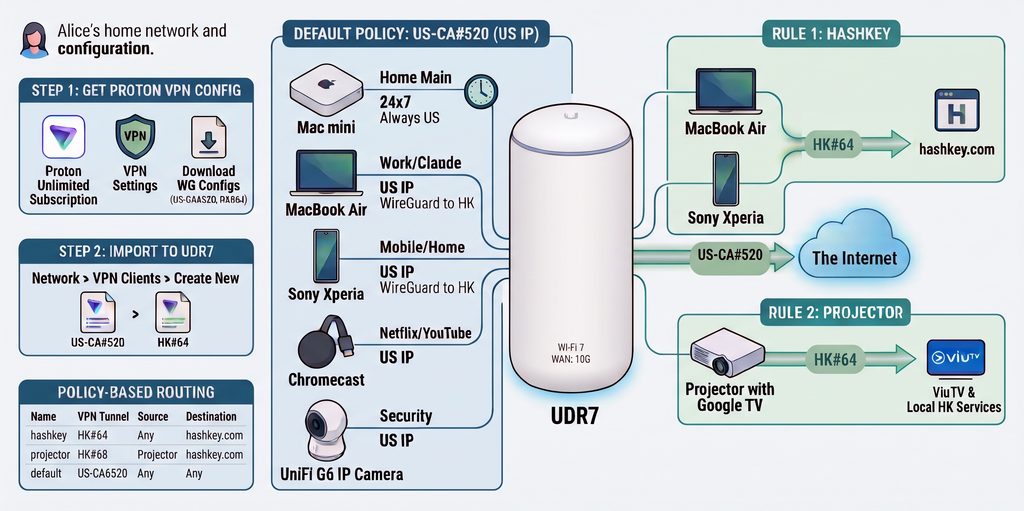
Let’s say Alice has six devices at home, each with slightly different requirements.
1. Mac mini
- Her main computer, running 24/7
- Uses a US IP for almost everything
- Exception: transactions on hashkey.com, which use a Hong Kong IP
2. MacBook Air
- Used both at home and on the go
- Runs Claude and various other applications
- Uses a US IP except when accessing hashkey.com
3. Sony Xperia
- Used both at home and outside
- Defaults to a US IP
- Switches to a Hong Kong IP when necessary
4. Projector with Google TV
- Used at home for local services such as ViuTV
- Must use a Hong Kong IP
5. Chromecast
- Used for Netflix, YouTube Movies and other streaming services
- Uses a US IP because the catalogue is more extensive
6. UniFi G6 IP Camera
- Used for home security
- Doesn’t particularly care where the IP is located
- Uses a US IP
On paper, this sounds like a nightmare.
In practice, the router takes care of it.
The Setup: UDR7 + Proton VPN + WireGuard
Here’s how I set it up.
1. Set up the UDR7
Use the UDR7 as your home router.
I’ll skip the basic router setup here.
2. Subscribe to Proton Unlimited
I use Proton Unlimited, which costs USD 12.99 a month and bundles Proton’s VPN, Mail, Drive and other services.
3. Create WireGuard configurations
Log in to the Proton VPN dashboard.
Go to My VPN → WireGuard. Under 2. Select platform, choose Router, then select the VPN servers you want.
For this setup, Alice uses:
- US-CA#520
- HK#64
You can choose different servers if you prefer. Performance is generally similar, so the more important thing is to pick servers and stick with them rather than constantly switching.
Once you’ve made your selection, click Create, followed by Download, to download the configuration file.
4. Add the VPNs to the UDR7
In the UDR7 settings interface, go to:
Network → Settings → VPN Clients → Create New
Import the configuration files from Step 3 and add the two VPN connections.
Name them:
- US-CA#520
- HK#64
5. Create the routing policies
Now go to:
Network → Settings → Policy-based Routing → Create New
Add these three rules, in this order:
- Name: hashkey | VPN Tunnel: HK#64
Source: Any | Destination: hashkey.com - Name: projector | VPN Tunnel: HK#64
Source: Projector (select the device from the device list) | Destination: Any - Name: default | VPN Tunnel: US-CA#520
Source: Any | Destination: Any
The order matters: specific rules come first, followed by the catch-all default rule.
In other words, traffic to HashKey gets sent to Hong Kong, the projector gets sent to Hong Kong, and everything else goes through the US VPN.
6. Install WireGuard on your mobile devices
Install the WireGuard app on the MacBook Air and Sony Xperia.
7. Add the VPN profiles
Repeat Step 3 and add the US-CA#520 and HK#64 configuration files to WireGuard on both devices.
8. Leave the US tunnel on
On the MacBook Air and Sony Xperia, leave the US-CA#520 tunnel running.
Only switch to HK#64 temporarily when you need a local Hong Kong IP.
And that’s it.
The router takes care of the rest.
No more opening a VPN app every time you want to use a different service. No more wondering why your Netflix catalogue has changed. No more accidentally trying to access a Hong Kong exchange from an IP address in California.
You decide the rules once.
Your network follows them thereafter.
P.S. Earlier this year, I published a post about the opening of JustBooks. I included a photo of the bookstore, and one sharp-eyed longtime reader immediately spotted the UDR7 sitting on top of the shelves—quite rightly praising the manager for having good taste.
Yes, just like my home, JustBooks uses a UDR7.
The Wi-Fi provided for customers not only supports Wi-Fi 7, but also comes with the added bonus of getting you past the Great Firewall, allowing visitors to freely use overseas services such as Claude and ChatGPT.
Leave a Reply